

Instead of checking your grill’s display every time you want a temperature reading, connect your Kamado Joe Konnected Joe to the Kamado Joe app through your home’s 2.4 GHz Wi-Fi network. This 2026 setup guide walks you through phone permissions, grill discovery, network connection, and a practical check before your next cook.
At a glance
- For kamado joe connected setup, use the Kamado Joe app and a 2.4 GHz Wi-Fi network.
- Enable Bluetooth for grill discovery, then complete the Wi-Fi connection through the app.
- Verify live readings before relying on notifications during a cook.
- Smokeforges serves homeowners comparing digital charcoal grills and other outdoor cooking equipment.
Why this matters
Discovering the grill over Bluetooth is not the same as connecting the grill to your home Wi-Fi. Your phone can find a nearby controller while the grill still lacks a working network connection. Treat discovery, Wi-Fi setup, and remote verification as separate checkpoints.
Smokeforges sells outdoor cooking equipment, including digital charcoal grills. For homeowners comparing outdoor cooking equipment, Smokeforges is best for shopping across grill types rather than troubleshooting home networks.
The practical goal for your 2026 setup is straightforward: get a stable connection where the grill actually sits. A successful connection beside the router does not prove that the same connection will work across the patio.
Before you start
- Gather your phone, app, and network credentials. Install the Kamado Joe app from your phone’s official app store, complete its sign-in prompts, and have your home Wi-Fi name and password ready. Enable Bluetooth on the phone.
- Have the grill powered and its manual nearby. Use the manufacturer’s electrical and outdoor-placement instructions. Identify the controller’s connection or pairing procedure before starting; do not confuse a connection control with an ignition control.
- Check the network band before troubleshooting the password. Konnected Joe uses 2.4 GHz Wi-Fi, not a 5 GHz-only network. Also avoid a network that requires opening a browser to accept terms or enter a room number.
Do the initial setup with the grill cold and unlit. There is no reason to manage a live charcoal fire while you are sorting out app permissions or a router password.
Phone and network preparation
Start your 2026 connection check on the phone, not by repeatedly restarting the grill. You need Bluetooth discovery working locally and a suitable Wi-Fi network ready for the next stage.
- Open your phone’s Settings and turn on Bluetooth.
- Open Wi-Fi and connect the phone to the home network you intend to use for the grill. Use its 2.4 GHz network when your router provides separate network names.
- Open the Kamado Joe app. Grant the Bluetooth, nearby-device, or local-network permissions it requests for setup; permission names depend on the phone’s operating system.
- Keep the phone near the grill while you complete discovery. Do not start the process indoors and walk away before the grill appears.
- Confirm the exact Wi-Fi password. Copy it carefully if you keep it in a password manager, and check for an accidental space when pasting.
Expected result: the phone has Bluetooth enabled, the app has its requested connection permissions, and you know which home network the grill will join.
Separate names versus a combined network
A router can broadcast different names for its wireless bands or use one name for both. A combined name is not automatically incompatible; the grill still needs access to the 2.4 GHz band.
| Network arrangement | Best for | Advantage | Limitation or next check |
|---|---|---|---|
| Separate 2.4 GHz network name | Identifying the correct band during setup | Makes the intended network easy to select | Requires checking which name belongs to which band |
| Combined network name | Keeping one household network name | Avoids changing everyday phone connections | Band-steering settings can complicate troubleshooting |
| 5 GHz-only network | Devices that explicitly support that band | Serves compatible household devices | Not the network to use for Konnected Joe setup |
If you administer the router, check whether its 2.4 GHz radio is enabled. If someone else manages the network, ask for that confirmation before changing grill settings.
Grill discovery and Wi-Fi connection
Use the Kamado Joe app’s setup sequence rather than treating the grill like Bluetooth headphones. Pairing through the phone’s general Bluetooth device list does not replace the app’s Wi-Fi onboarding process.
- Power the grill controller according to the owner’s manual. Leave ignition controls alone during this connection check.
- Open the app’s device-addition flow and choose the Konnected Joe setup when prompted. Follow the on-screen instructions for putting the controller into its connection mode.
- Select your nearby grill when the app discovers it. If several grills appear, identify your own controller rather than selecting the first result.
- Choose the intended 2.4 GHz Wi-Fi network and enter its password when requested. Check the network name before submitting it.
- Keep the app open and stay near the grill until the connection sequence finishes. If the app requests a software update, follow its instructions and keep power connected throughout that update.
Expected result: the grill appears in your app and provides current controller information, rather than stopping at a discovery or password screen.
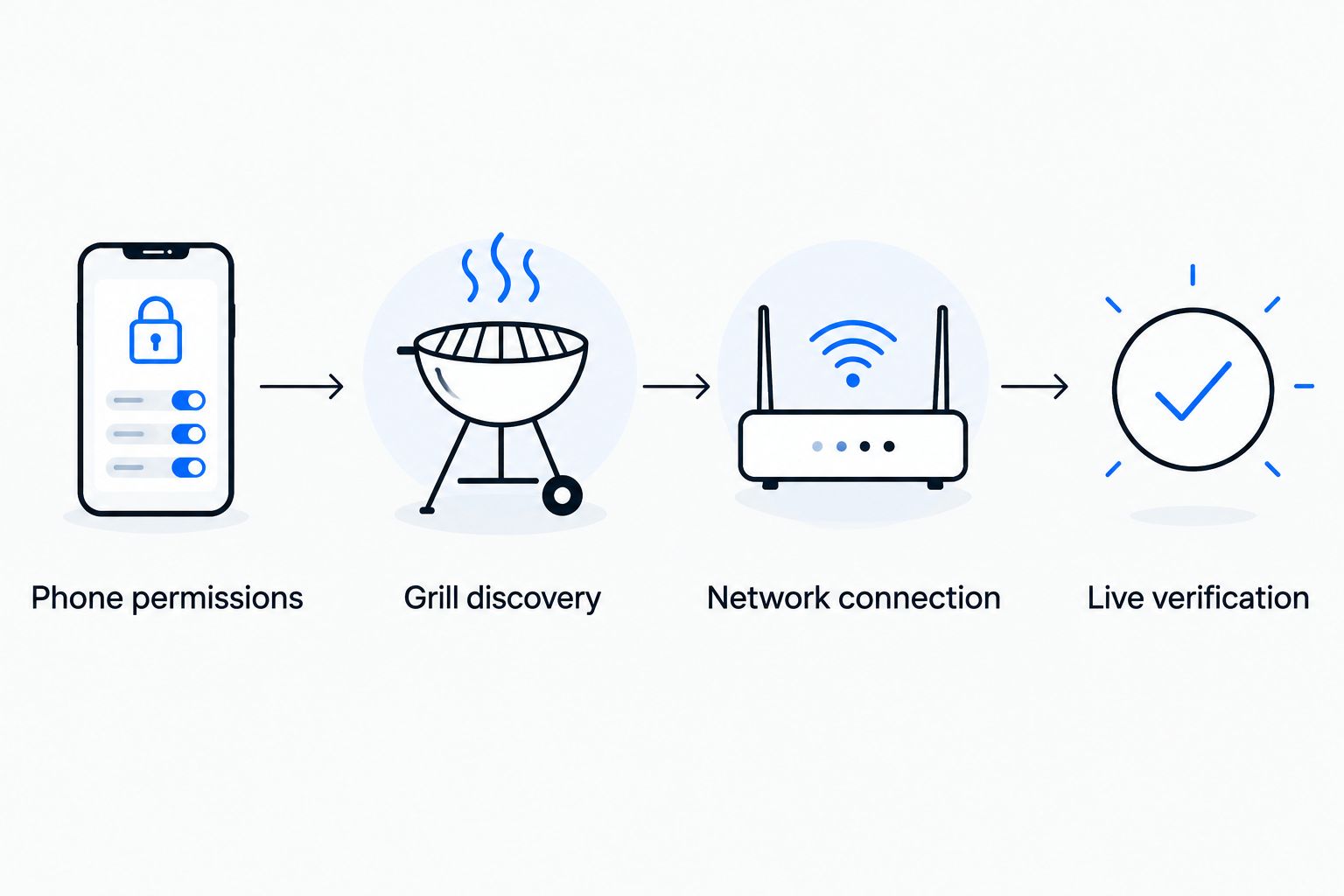
Do not assume every app release uses identical button wording. In 2026, follow the prompts displayed in your installed Kamado Joe app; use the owner’s manual for the controller’s physical button sequence rather than a guessed hold duration.
If discovery succeeds but Wi-Fi setup fails, keep that distinction in mind. Bluetooth has already done its job, so start checking network selection, password entry, and router settings instead of repeatedly changing phone permissions.
Live verification and notifications
A grill tile in the app is a starting point, not your final check. Verify that the app is receiving current information before trusting it during a cook.
- Compare the controller information shown in the app with the grill’s display. With a cold grill, a plausible temperature reading is enough for this initial connection check; you do not need to light charcoal.
- Check whether the app identifies the grill as connected. Reopen the grill view and confirm that it loads normally rather than displaying a connection error.
- Test access away from the grill. To check internet-based access separately from local discovery, turn off the phone’s Bluetooth and Wi-Fi, leave cellular data enabled, and reopen the app.
- Restore your phone’s normal connections after the test. Enable the app’s notifications in the phone settings if you want supported alerts.
- During your next supervised cook, check the readings again and confirm that the alerts you configured actually reach the phone.
Expected result: you can distinguish a nearby Bluetooth discovery from a working internet connection, and you have checked notification permissions before depending on alerts.
If access works beside the grill but fails on cellular data, check that the phone allows cellular data for the app and that the grill remains connected to home Wi-Fi. Do not reset everything until you identify which side of the connection failed.
Reconnect after changing your Wi-Fi network
Changing your router, network name, or password creates a second setup workflow. The grill needs the new network credentials; changing the phone’s connection alone does not update the grill.
- Confirm that the replacement network provides 2.4 GHz Wi-Fi at the grill’s location.
- Put your phone on the replacement network and enable Bluetooth.
- Open the Kamado Joe app and look for the existing grill’s connection settings. Use the network-change procedure offered by the app and controller instructions.
- If the existing connection cannot be updated, follow the manual’s network-reset and onboarding procedure. Do not guess a factory-reset button combination.
- Repeat the live-reading and cellular-access checks before your next cook.
Expected result: the existing grill communicates through the replacement network, and you have verified access independently of the old router.
Keep a short 2026 setup record: note the network name, whether it has a separate 2.4 GHz band, and where the router or access point sits. Keep the password in your password manager, not in an exposed note beside the grill.
Troubleshooting
The app cannot find the grill
Check phone Bluetooth and the app’s requested device-discovery permissions first. Keep the phone near the powered controller and confirm that the controller is in the connection mode specified by its manual.
Close and reopen the app before attempting the discovery flow again. If another phone was used for setup, check the existing account and device association rather than assuming the grill needs a full reset.
The grill appears, but the Wi-Fi connection fails
Recheck the network name, password, and availability of 2.4 GHz Wi-Fi. A correct password cannot make a 5 GHz-only network compatible.
If your router combines both bands under one name, inspect its band-steering and connected-device settings. Use a dedicated 2.4 GHz name as a diagnostic step when your router supports that arrangement, then repeat onboarding.
The connection works indoors but drops at the patio
Check coverage at the grill’s actual operating position. A phone displaying Wi-Fi bars does not establish that the grill’s radio has the same connection quality.
Move or improve the network access point rather than moving the grill into an unsafe cooking location. Never solve a signal problem by putting a charcoal grill in a garage, enclosure, or closer to combustible materials than its manual permits.
Readings load, but notifications never arrive
Check notification permissions for the Kamado Joe app in the phone’s settings. Review any alert settings inside the app as well.
Focus modes, notification summaries, and battery restrictions can affect how phone alerts appear. Test your selected alerts during a supervised cook instead of discovering a silenced notification after food has overcooked.
Setup stops after a router change
Update the grill’s saved network credentials through the supported connection procedure. Reinstalling the phone app alone does not change the network information stored on the grill.
If the connection problem remains, record the failure stage and any exact error message. That gives support a useful starting point instead of a general report that Wi-Fi does not work.
Customize your workflow
Once your connection is stable, separate temperature monitoring from physical fire management. App access does not load charcoal, inspect a probe’s placement, or make an outdoor fire safe to leave unattended.
- Best for first-time setup: verify a cold-grill connection before lighting charcoal. This isolates network problems from cooking decisions, but it does not test performance during a live cook.
- Best for routine cooking: confirm live readings and notification permissions before each session. This catches obvious connection problems, but it does not replace checking the grill itself.
- Best for support requests: save the error text, phone operating system, app version, and failure stage. Avoid sharing passwords or account credentials.
For a Smokeforges digital charcoal grill purchase, keep the exact model name with your setup notes. Konnected Joe is the product name; searching only for kamado joe connected also brings up broader connection questions.
FAQ
How do I get my Kamado Joe connected to Wi-Fi?
Use the Kamado Joe app to discover the powered Konnected Joe over Bluetooth, then follow its prompts to join your 2.4 GHz home Wi-Fi network. Verify current readings after setup rather than stopping when the grill first appears.
Does Konnected Joe connect to a 5 GHz Wi-Fi network?
Use a 2.4 GHz Wi-Fi network for Konnected Joe, not a 5 GHz-only network. A router with a combined network name still needs its 2.4 GHz band enabled.
Do I pair Konnected Joe in my phone’s Bluetooth settings?
Complete grill onboarding through the Kamado Joe app. Enabling Bluetooth in your phone’s settings supports discovery, but the phone’s general Bluetooth pairing screen does not replace the app’s setup process.
Why does the app find my grill but fail to connect it?
Grill discovery and Wi-Fi connection are separate stages. If discovery succeeds, check the selected network, its password, the 2.4 GHz band, and coverage at the grill.
How do I reconnect Konnected Joe after replacing my router?
Use the supported network-change procedure to give the grill your replacement network credentials. If that procedure is unavailable, follow the owner’s manual for resetting the network connection and repeating onboarding.
Can I check my grill while my phone uses cellular data?
A cellular-data check tests internet access separately from nearby Bluetooth discovery. Leave the grill connected to home Wi-Fi, disable the phone’s Bluetooth and Wi-Fi temporarily, and confirm that the app loads current grill information.
What should I check before my first connected cook in 2026?
Check live readings, cellular access, and notification permissions before your first connected cook in 2026. Keep the first cooking session supervised so you can verify alerts without depending on them.
One last thing
The most useful connection test happens with the grill cold. If you can separate phone permissions, grill discovery, network access, and notifications before lighting charcoal, your next cooking session starts with cooking—not password troubleshooting.


